
Your TikTok ads are spending $50/day but you can't tell which products drive sales or where customers drop off. That's what happens without proper pixel tracking.
When you skip event setup, TikTok's algorithm can't optimize your campaigns. You're serving ads to random users instead of shoppers ready to buy. The platform needs data on customer actions—product views, cart additions, purchases—to target the right audience.
This guide shows you how to set up TikTok Pixel events for e-commerce stores. We'll cover standard vs custom events, Shopify and WooCommerce integration, verification steps, and campaign optimization strategies.
What is TikTok Pixel and Why It Matters for Your Business

TikTok Pixel is a small piece of code you place on your website to track user behavior and measure ad performance.
When someone visits your store, views products, adds items to cart, or makes a purchase, TikTok Pixel records these actions and sends data back to your TikTok Ads Manager. This allows you to understand your customer journey better and optimize your campaigns accordingly.
Unlike basic click metrics, TikTok pixel tracking gives you insight into the complete customer path. You can see exactly where potential buyers drop off, which products perform best, and how different audiences interact with your store.
For e-commerce sellers, this data is gold when it comes to improving ROAS and scaling profitable campaigns.
Step-by-Step Setup Process for TikTok Pixel
Getting TikTok Pixel installed is straightforward if you follow the right process. Here's how to do it properly.
Step 1: Access TikTok Ads Manager
First, log into your TikTok Business Account and go to TikTok Ads Manager. From there, click on Tools in the top menu, then select Events to access TikTok Events Manager. This is where all your conversion tracking magic happens.
Step 2: Create Your Pixel
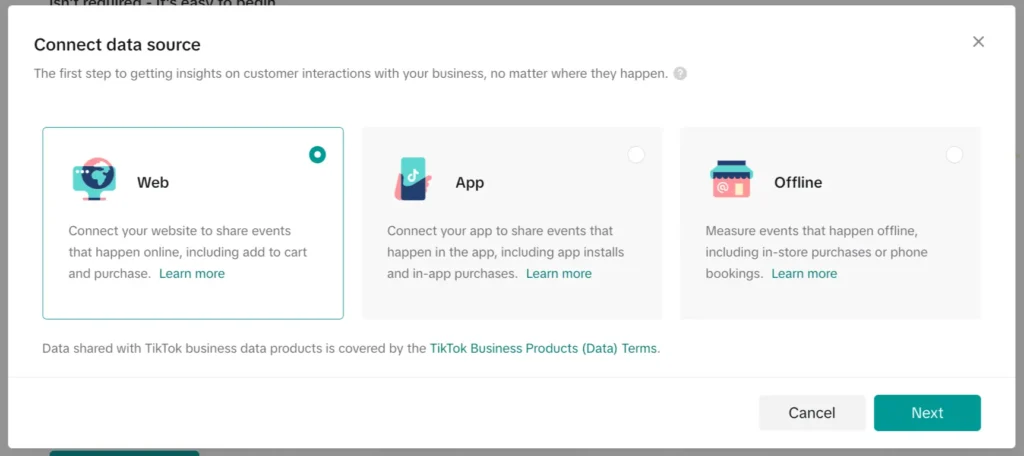
Once in Events Manager, click Create Pixel or Manage on the Web Events tab. You'll get prompted to choose between tracking app events or web events. For e-commerce, select Web Events.
Now comes the important part: naming your pixel. Give it a clear name that matches your website or business name. Keep it under 128 characters. Mega Digital and other experts recommend naming it something like “MyStore-Main-Pixel” so you can identify it easily if you manage multiple pixels.
Step 3: Choose Your Installation Method
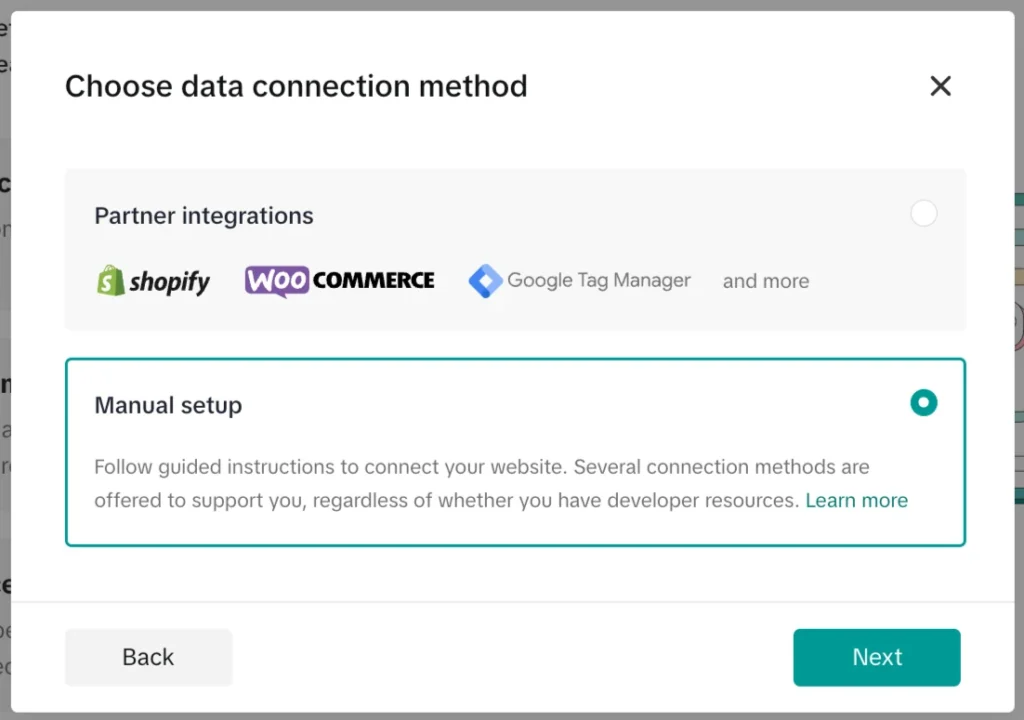
TikTok offers three connection methods for pixel installation. Here's what each one means.
- Manual setup requires you to copy the HTML code and paste it directly into your website's header. This works for any website but needs some technical knowledge or developer help. You get maximum control over placement and events.
- Google Tag Manager integration lets you manage your pixel through GTM. This is perfect if you're already using GTM for other tracking tools. Setup takes minutes and gives you flexibility to add more events later without touching code.
- Partner platforms include Shopify, WooCommerce, BigCommerce, and others. If you use one of these, select your platform and TikTok will guide you through connecting it. No coding needed at all.
Step 4: Install the Pixel Code
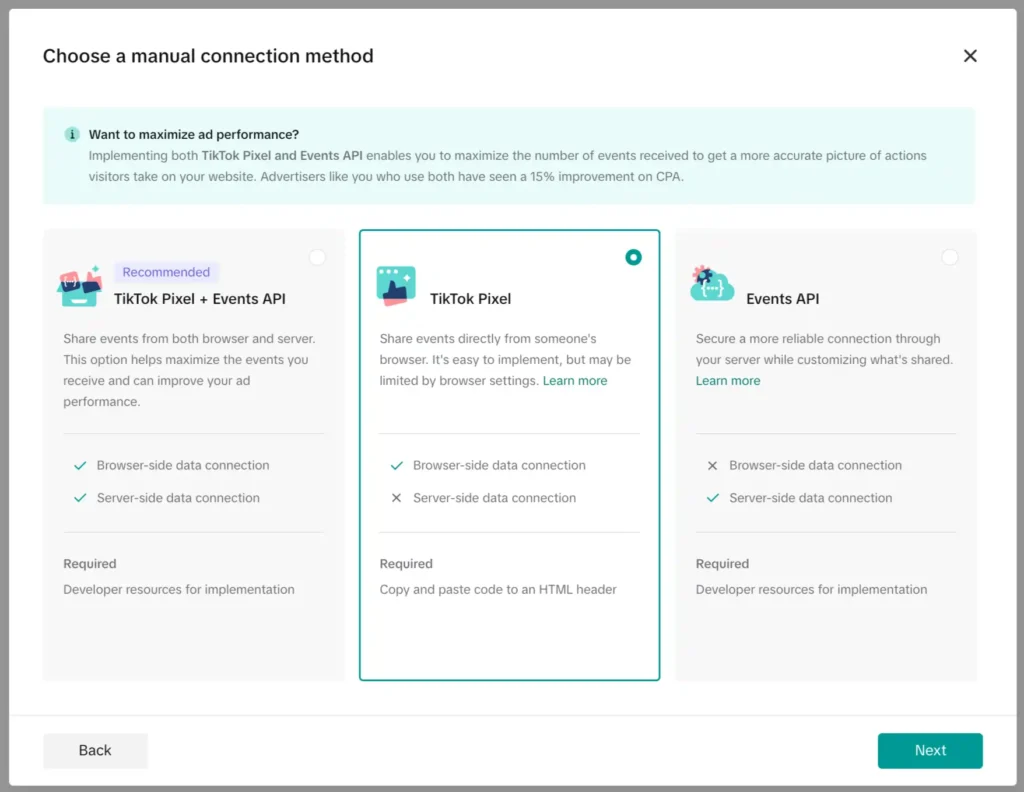
If you choose manual setup, copy the pixel code TikTok provides. Open your website's HTML editor and paste it inside the <head> tags of your main page. Paste it only once.
For Shopify, install the official TikTok app from their app store. Search for “TikTok” and select the official TikTok Inc. app. Click Add app, then Add sales channel, then Set up now. Connect your TikTok Business account and TikTok Ads account. Create a new pixel or select an existing one.
For Google Tag Manager, select GTM from connection methods. Click Connect to link your GTM account. Select your account, container, and workspace. Confirmation shows once everything syncs.
| Setup Method | Best For | Difficulty | Time Required |
|---|---|---|---|
| Manual Code | Custom websites, maximum control | Medium | 15-20 minutes |
| Google Tag Manager | Already using GTM, flexibility needed | Low | 10-15 minutes |
| Shopify / WooCommerce | Built on platform, beginner-friendly | Low | 5-10 minutes |
| Other Partners | Platform-specific solutions | Low | 5-10 minutes |
Configure Your E-commerce Events
After installation, you need to tell TikTok which events to track. This is where event configuration becomes critical for your campaign optimization.
Standard Events for E-commerce
TikTok provides predefined standard events you should track. Each one captures a specific stage in your customer journey.
How to Add These Events
Within the Events Manager, click Add Events or Create Events. For each event, you'll name it, choose a setup method, and define the trigger. Use Event Builder to visually identify page elements, or use Custom Code for more precision.
For ViewContent, set the trigger to fire on product pages. Usually this means any URL containing “product” or similar.
For AddToCart, identify the button or element users click to add items. Most platforms let you select by button ID or URL patterns.
For InitiateCheckout, trigger on your checkout page URL.
For Purchase, trigger on your thank-you page or order confirmation page. This is crucial because TikTok needs to connect the actual purchase to track conversion value.
Add optional parameters like product ID, product name, price, and currency. These make your tracking richer and help TikTok optimize better.
Implement Server-Side Tracking with Conversion API
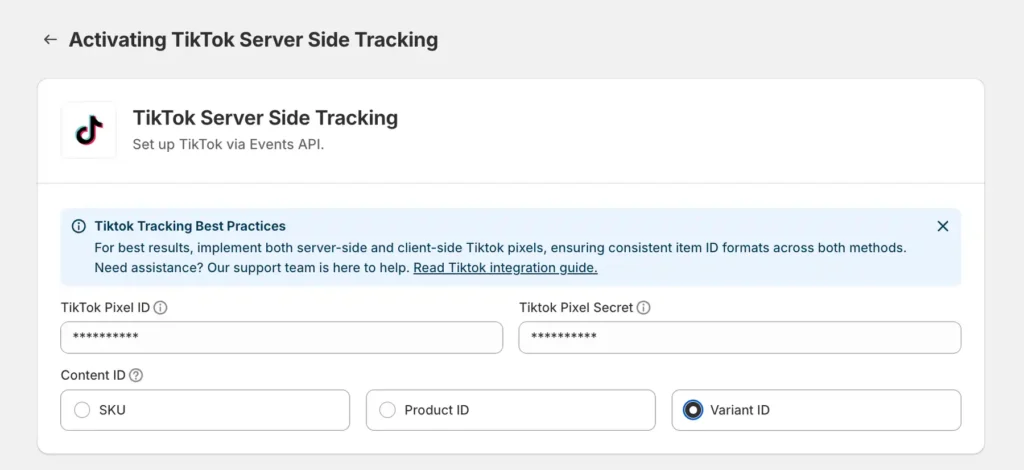
TikTok Events API (also called Conversion API or CAPI) sends event data from your server to TikTok instead of just from the browser. This bypasses cookie restrictions and ad blockers that prevent accurate browser-based tracking.
Many experts recommend running both TikTok Pixel (browser-side) and Events API (server-side) together. The pixel catches real-time browser interactions, while the API captures server-side conversions. TikTok uses both to build a complete picture.
Setting up server-side tracking typically requires developer help or using a partner integration. If you use Shopify or similar platforms, many have CAPI integration built in.
Optimize Your Pixel for Better Results
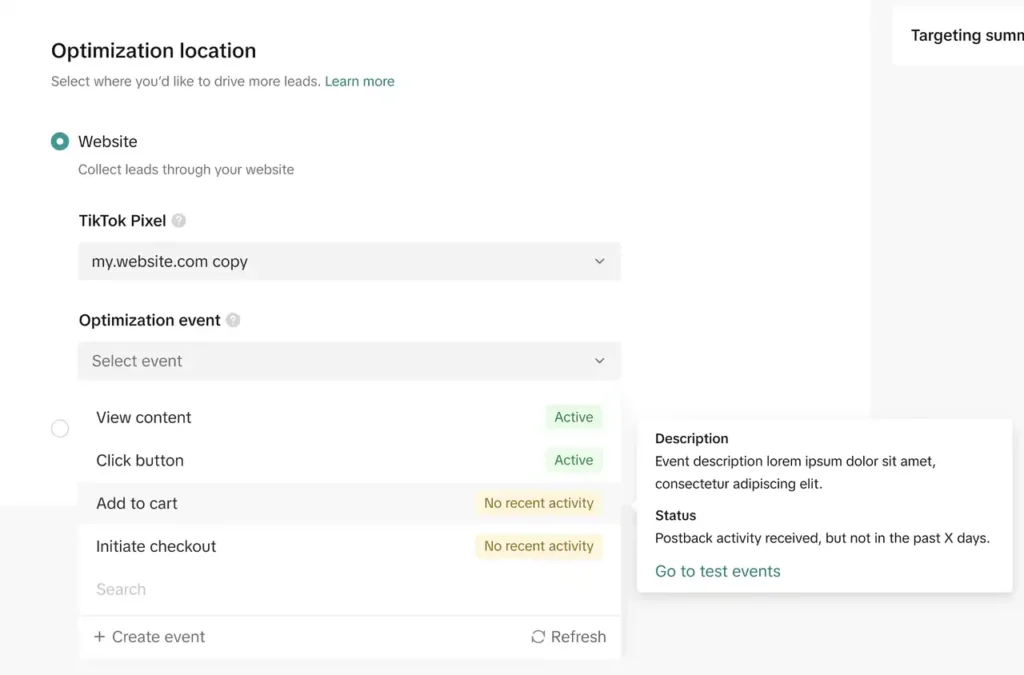
Simply installing a pixel isn't enough. You need to optimize tracking for maximum performance and accurate data collection.
Use Event Parameters for Rich Data
When you create events, add parameters that TikTok can use. For purchase events, include:
This enriched data helps TikTok understand the monetary value of conversions and optimize towards profitable customers rather than just any conversion.

Supercharge Your Store With TikTok For Business Pixel
Boost conversions and track success effortlessly—install TikTok Pixel for smart eCommerce ads. Get $6,000 ad credits now!
Create Custom Events for Your Business
Beyond standard events, build custom events specific to your business. If you sell courses, track “Lesson Completed” or “Quiz Started.” If you run a service, track “Consultation Booked” or “Form Submitted.”
Use Event Builder to select page elements, or write custom code if you need more complexity. Custom events help with audience building and campaign optimization.
Track Important E-commerce Metrics
Your pixel data opens doors to understanding metrics that actually move your business forward.
Click-through rate tells how many people click ads. Conversion rate tells how many actually buy. Cost per acquisition shows what each customer costs you. Return on ad spend reveals if you're profitable.
TikTok shows these metrics in your campaign dashboard once events are set up. Compare performance across audiences, products, and creatives. Double down on what works, pause what doesn't.
Final Words on TikTok Pixel for E-commerce Success
Now your pixel events are live and collecting real data. Stores that actually track their conversions see their ROI jump by 30 to 50 percent. That's not magic, that's just knowing what works instead of guessing.
Your TikTok campaign performance becomes measurable. Every purchase, every cart added, every product view gets recorded. You stop wasting money on blind ads. Instead you scale what actually sells.
So here's the real question: are you ready to stop guessing and start tracking your e-commerce success?